Adding Files to Source File List
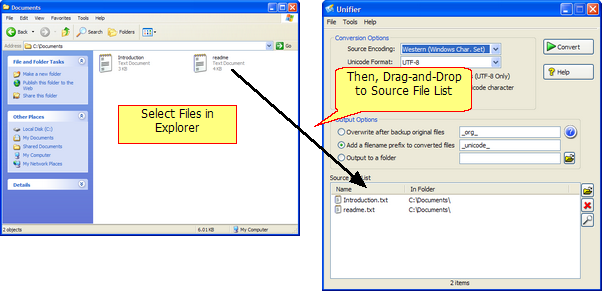
Method #1: Drag-and-Drop
1. Select the files to be converted from Windows Explorer. Please hold Ctrl key if you want to select multiple files
2. Drag-and-Drop the files to Source File List inside Unifier Main Window.
Method #2: File Open Dialog Box
1. Click  button near Source File List
2. Select the files in the dialog box. You may specify multiple files by using Ctrl key. But all files must be in the same folder. Then, click Open button
Note: If you add a shortcut file (*.lnk) to Source File List, Unifier will try to expand the Shortcut and add the target of the shortcut to Source File List.
Removing File From Source File List
1. Select the files to be converted from Source File Control List. Please hold Ctrl key if you want to select multiple files.
2. Drag-and-Drop the files outside the Main Window of Unifier
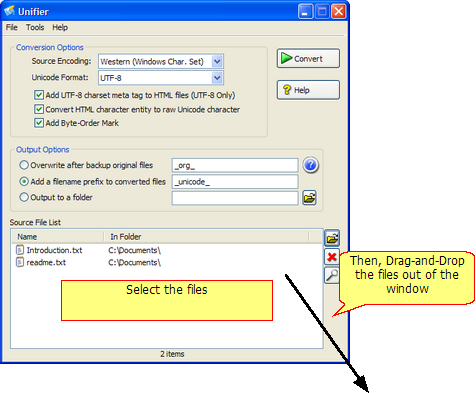
OR Click the  button
See Also
Setting Output Option
Unicode Format and Option


